How I Shared My WSL App to QA on the Same Network (Simple Port Proxy Setup
Published on:
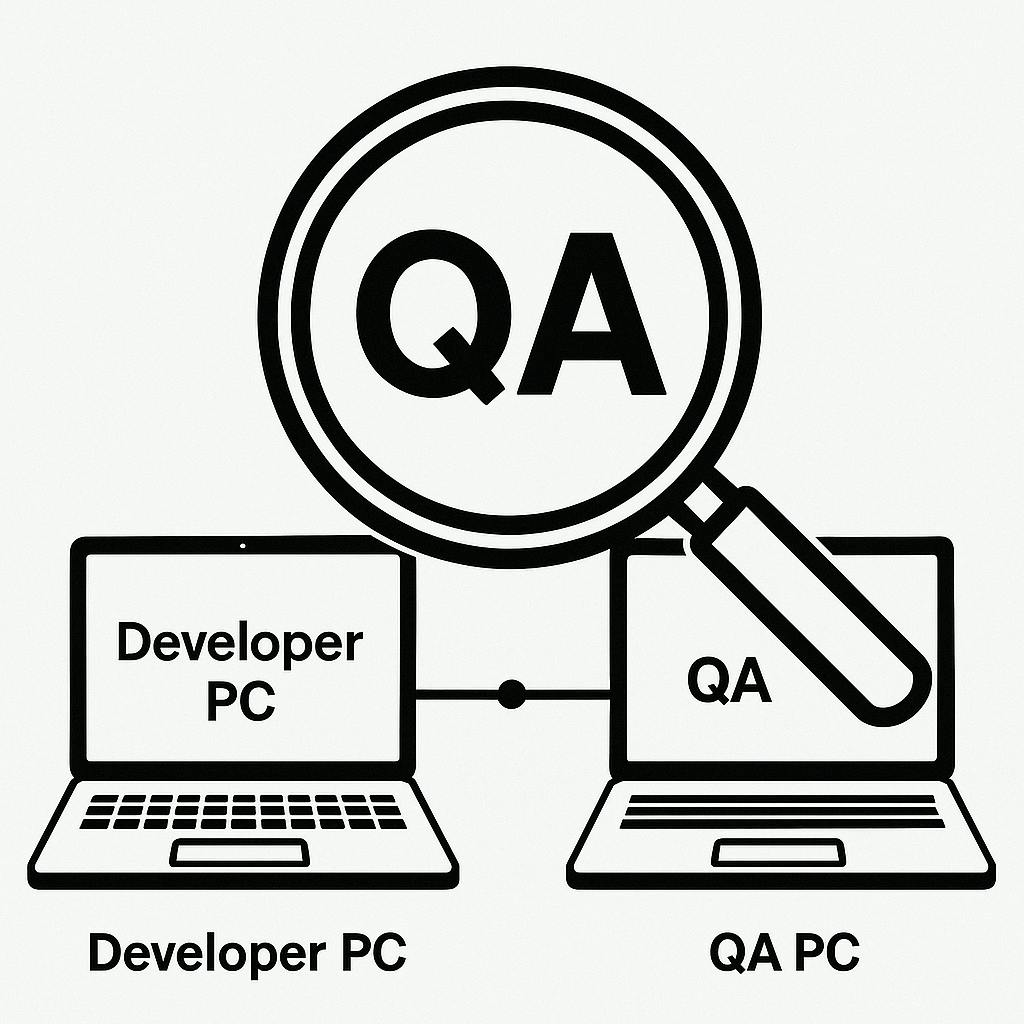
How I Shared My WSL App with QA
I needed to run my app in WSL (Windows Subsystem for Linux) and let my QA teammate check it from another PC on the same network. Here’s the simple way I made it work:
Step 1: Find your app port
My app was running on port 8001.
Step 2: Get WSL IP
Inside WSL, run:
hostname -I
I got: 172.17.217.187
Step 3: Add port proxy in Windows
Run this command in PowerShell (Admin):
netsh interface portproxy add v4tov4 listenaddress=0.0.0.0 listenport=8001 connectaddress=1**.17.***.*** connectport=8001
Step 4: Share the link
Now QA could open:
http://***.***.***.57:8001
Extra check:
If it doesn’t work, go to Windows Defender Firewall → Add new rule → Allow port 8001.
That’s it! My QA could now see my WSL app from their machine